

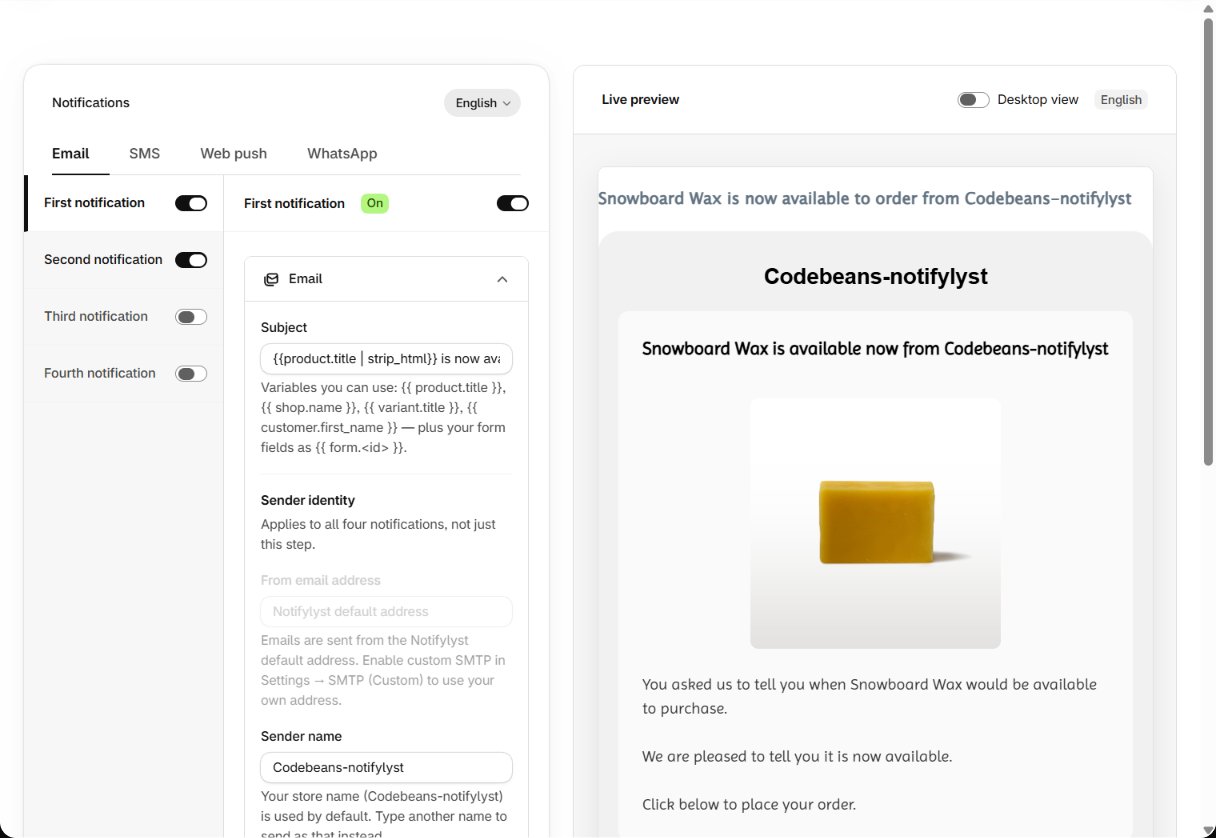
Steps and delays
A restock alert can be up to four messages: First notification when stock lands, then up to three reminders for shoppers who haven’t bought yet. Each step has its own switch and its own content.
Time delay before a follow-up: 2 minutes; 1, 2, 4, 8 or 12 hours; or 1, 2, 3, 5, 7, 14 or 30
days. A delay of a day or more is sent in the shopper’s local morning, not at the exact hour.
Follow-ups stop automatically when the shopper buys, unsubscribes, or the variant is sold out
again. How many steps you see depends on your plan (2 to 4); choosing your own delays depends on
Smart Scheduling — without it, the default delay is used.
What’s in an email
The email editor is split into sections: Email (sender name, from and reply-to — see Email sending and sender), Header, Message, Buy button, Discount codes, Footer and Custom HTML. The live preview has a Mobile / Desktop switch. Default subjects, step by step:{{product.title}} is now available to order from {{shop.name}}Reminder: … is still available!Don't miss out! … is in stockFinal notice: … is waiting for you
SMS and web push
Variables
The editor lists what you can use above the content:Writing a restock alert that converts
The message has one job: get someone back to a product page while stock still exists.Testing before you send
Send test email (or Send test SMS) delivers a real message for a real variant, so you see exactly what a shopper sees. A test is a real send: it uses your allowance and appears in Communication logs. With nothing left to send you see No notifications left this cycle to send a test. Top up or upgrade, then try again. Test WhatsApp messages aren’t available yet. Reset to default brings back the shipped content for the step you are editing.If someone else saved these notifications while you were editing, saving shows These
notifications were changed somewhere else… Nothing was saved. Reload the page and make your
change again.
Other languages
Pick the language you are editing from the language menu. Shoppers get the message in the language of the storefront they signed up on; if you haven’t written that language, built-in translations are used for the default text (11 languages). Editing other languages depends on Multi-Language, and changing the content at all depends on Custom Templates — see Plan features.Read your analytics
Next: see which messages lead to orders.
A shopper gets a restock alert
The messages in context.