

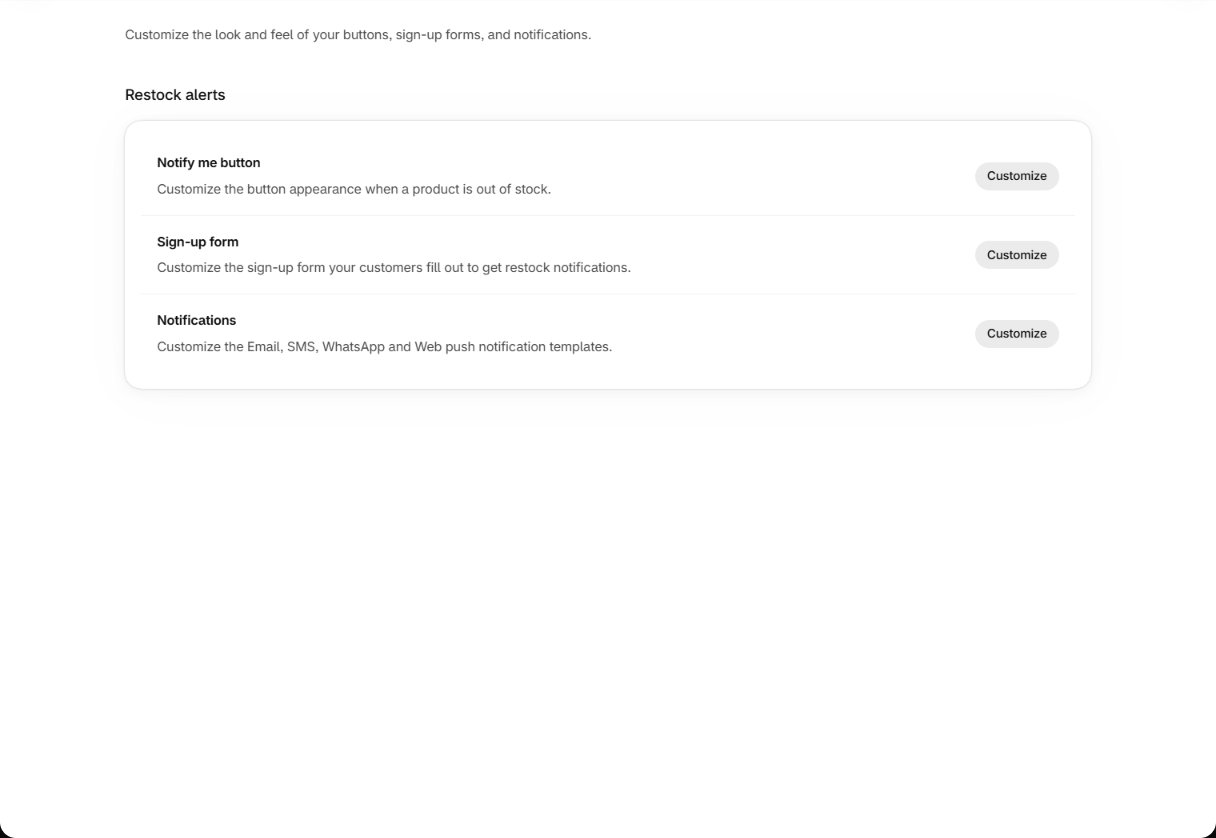
The Notifylyst Restock Button block that sits in your product page is styled in the Shopify
theme editor, in the block’s own settings — not here. See
Storefront widget.
Notify me button
The floating button: a tab fixed to the left or right edge of product pages, shown only while the selected variant is sold out. A live preview sits next to the settings.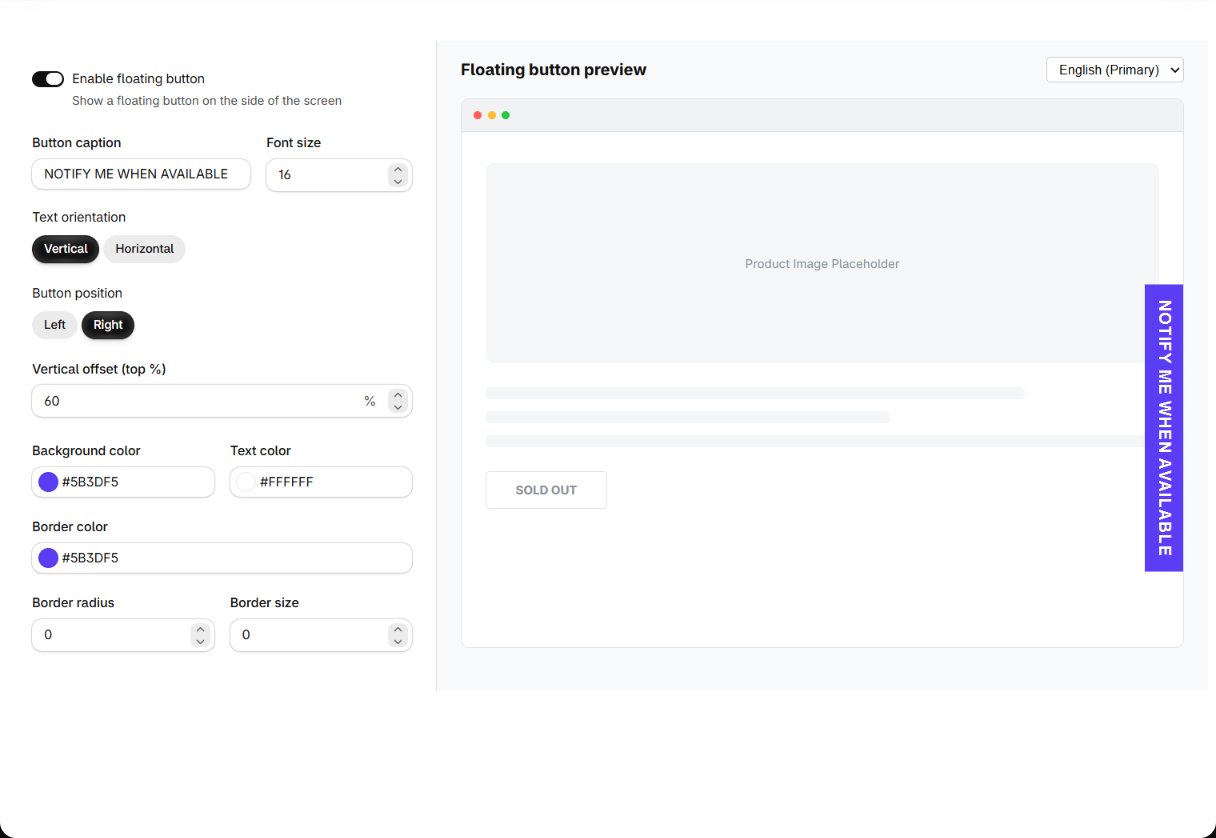
A value outside the allowed range shows its error next to the field (for example Font size must
be between 10 and 32.) and nothing is saved. Button styling depends on your plan (Button
Customization).
Sign-up form
Three tabs, plus a language menu if your store has more than one language. The live preview on the right shows the form as a shopper sees it, including the error and success messages.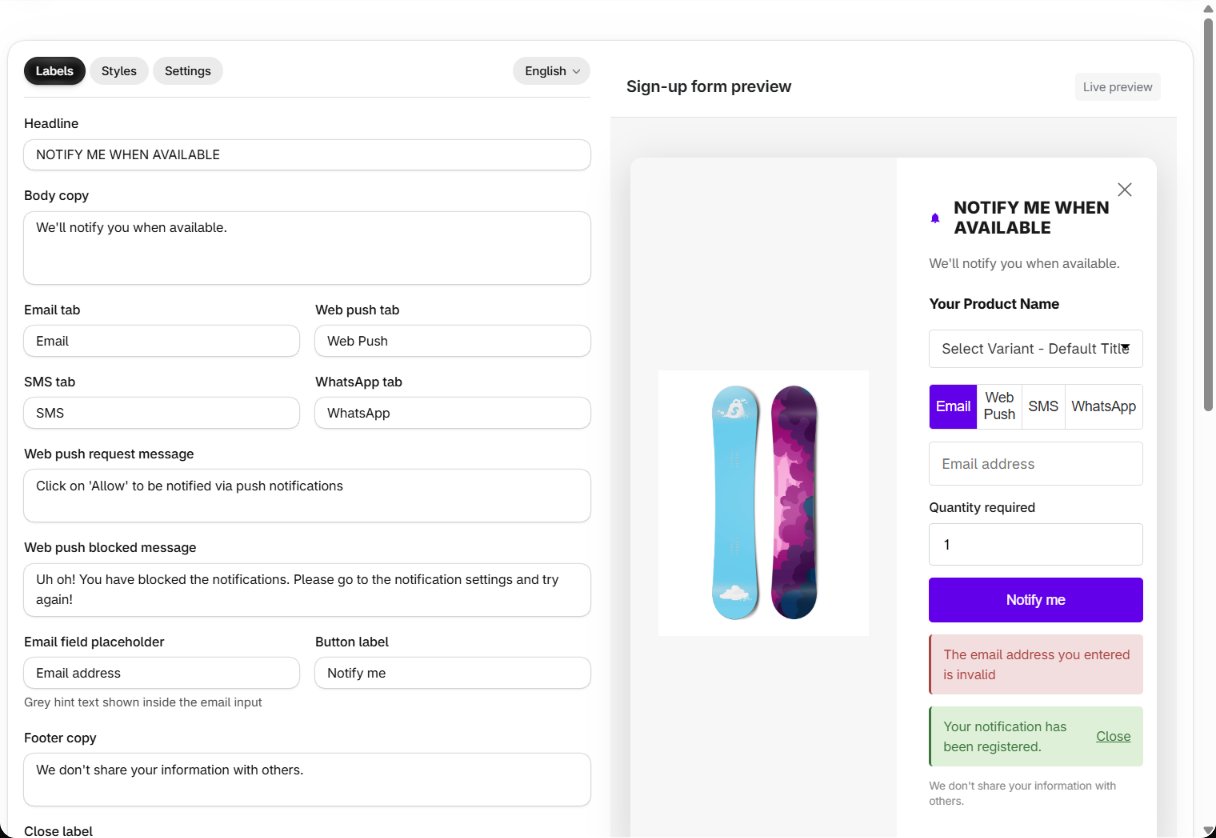
- Labels
- Styles
- Settings
Every piece of text on the form, per language:
- Headline (NOTIFY ME WHEN AVAILABLE) and Body copy (We’ll notify you when available.)
- the tab names for Email, SMS, Web push and WhatsApp, and their field placeholders
- the button text (Notify me) and the footer (We don’t share your information with others.)
- the messages: invalid email, already registered, and the confirmation (Your notification has been registered.)
- Enable quantity required field — on by default; off hides Quantity required and every sign-up asks for 1 unit.
Switching language with unsaved changes asks Save changes before switching language? Each
language is saved separately. Editing other languages depends on your plan
(Multi-Language).
Limits
The whole form, in every language, must fit in 120,000 bytes — Shopify’s limit for the data the storefront reads. Past it, nothing is saved: Nothing was saved: the form is X KB, over Shopify’s 117 KB limit… If Shopify can’t store it, you see Could not save to Shopify. Nothing was stored… — try again.Sign-up form fields
Next: ask shoppers extra questions.
Message templates
The third editor: what shoppers receive.