

1
The shopper finds a sold-out product
On a product page, the shopper picks a variant that is sold out. Notifylyst shows a Notify me
when available button — where you placed it in the theme editor, or as a tab on the edge of the
screen if you turned on the floating button. Both appear only while the selected variant is sold
out, and disappear when the shopper picks one that is in stock.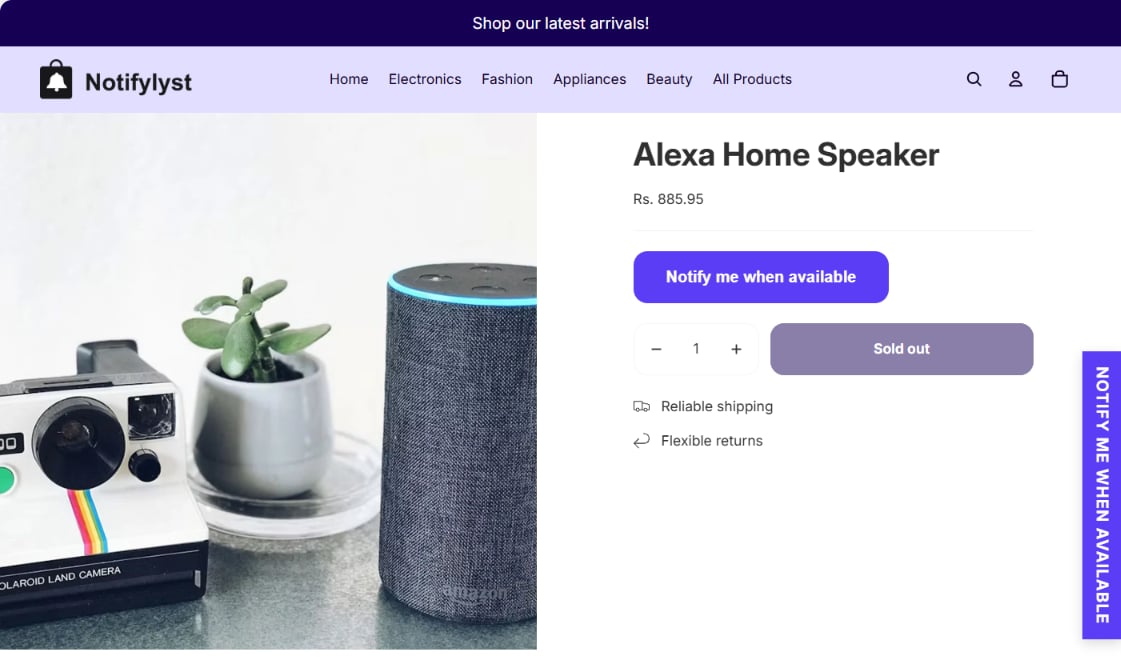
2
They open the form
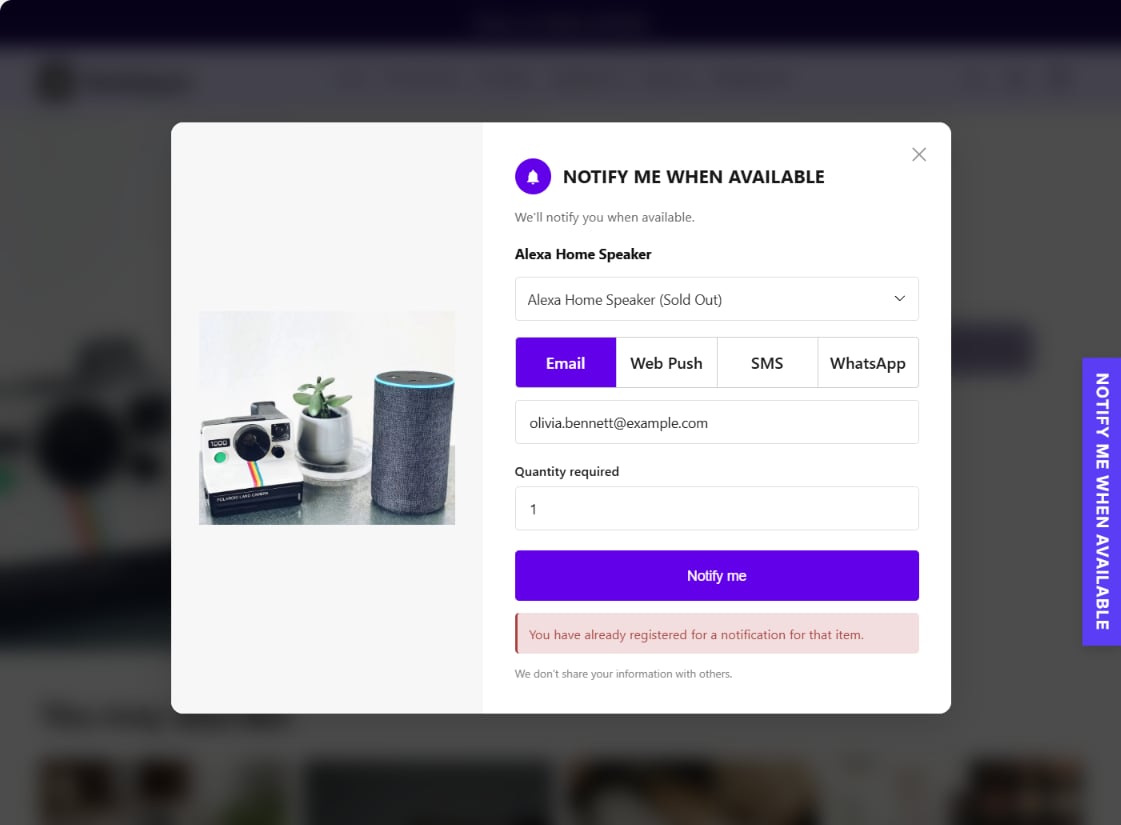
The button opens the sign-up form for the selected variant. It shows: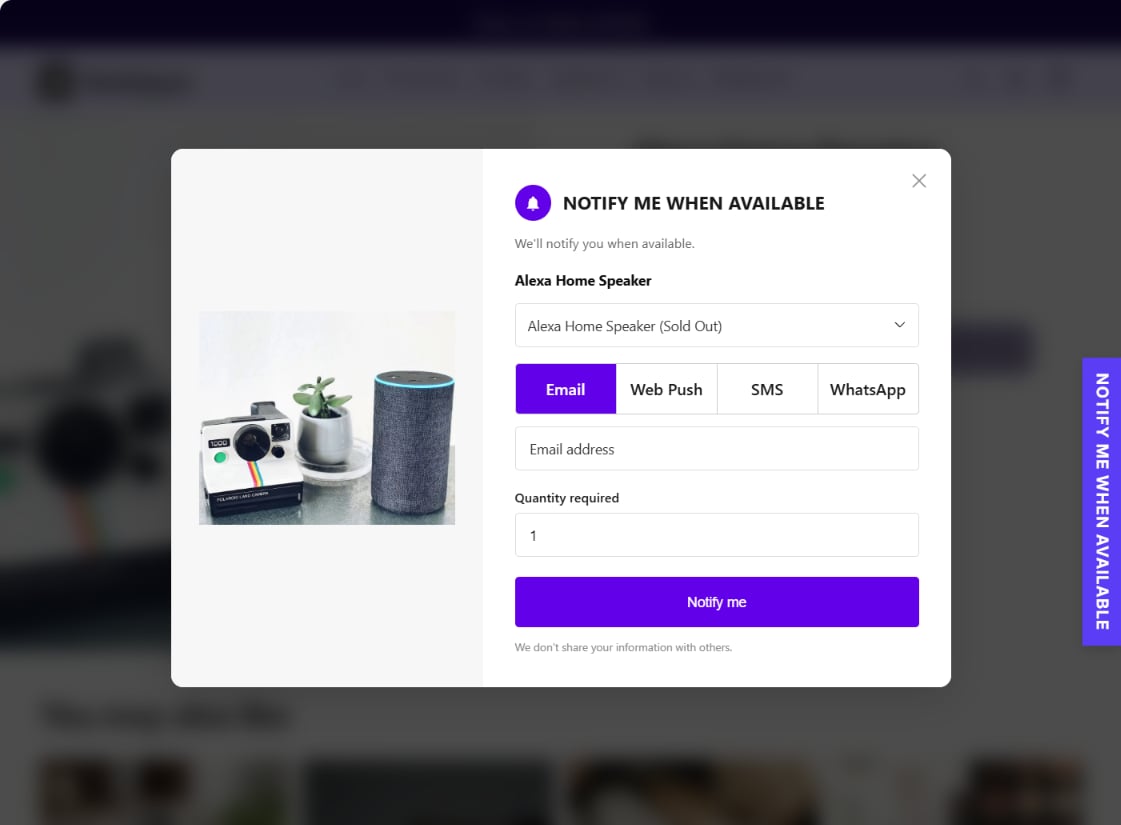
- the headline NOTIFY ME WHEN AVAILABLE and We’ll notify you when available.
- the product and a variant list — only the sold-out variants, each marked (Sold Out)
- one tab per channel you have switched on (Email, Web Push, SMS, WhatsApp)
- Quantity required, set to 1
- any custom fields you added
- the Notify me button and We don’t share your information with others.
3
They fill it in
The form checks the answers before anything is sent. Typical messages: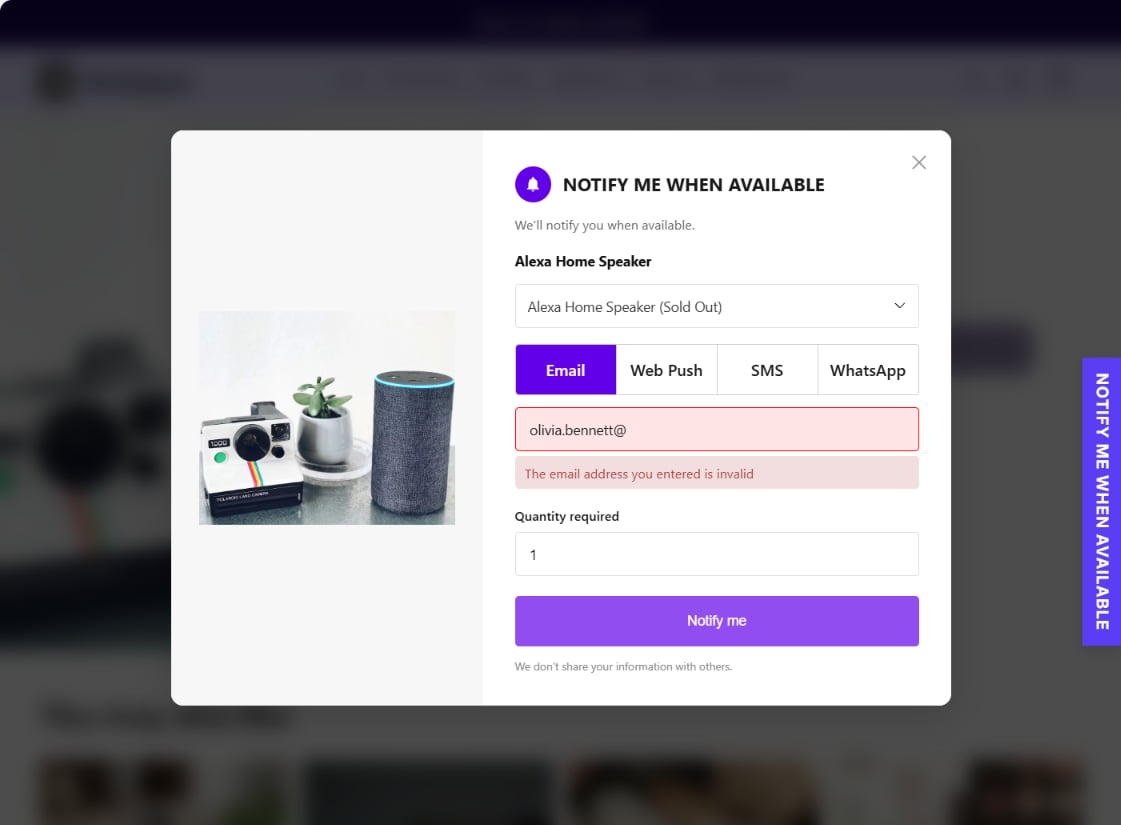
4
They see the confirmation
The form shows Your notification has been registered. and closes itself after a moment.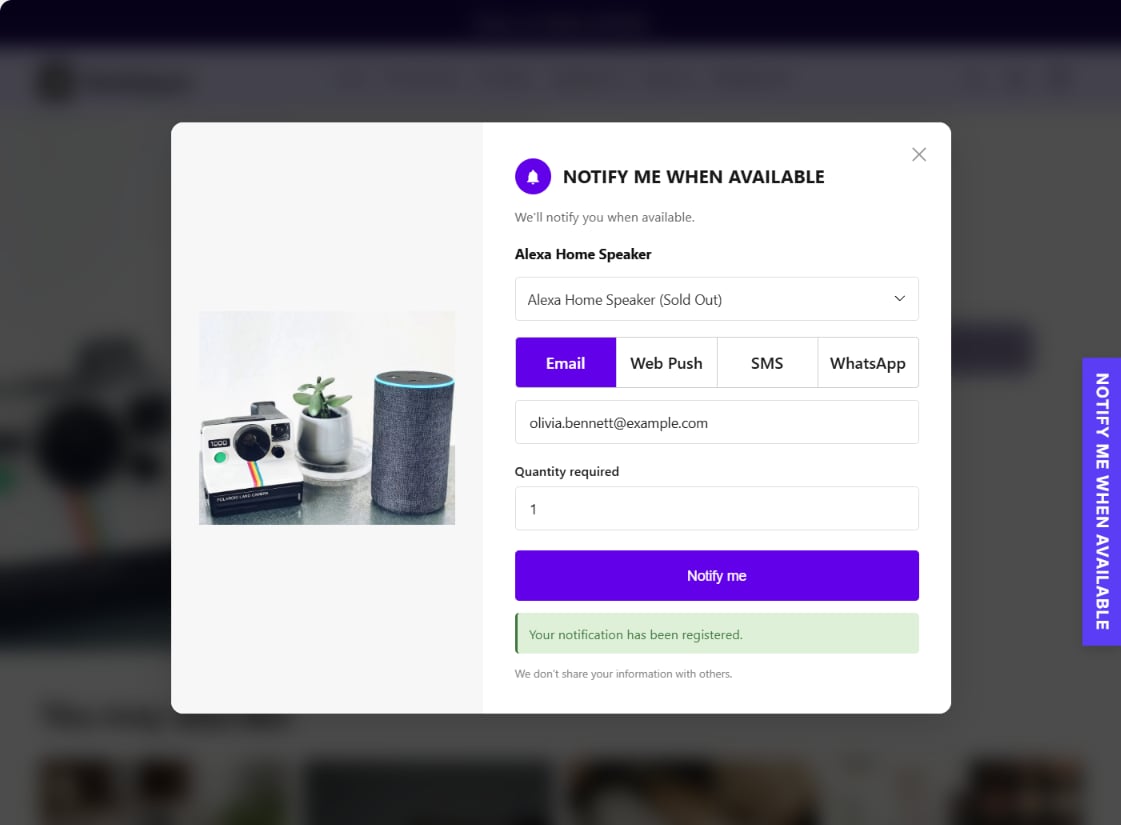
No confirmation email is sent. The message in the form is the shopper’s only confirmation.
The sign-up appears straight away in Analytics → Sign-ups and on your Dashboard.
5
The product comes back
When stock for that variant goes above zero in Shopify, Notifylyst works out who to alert:
- shoppers still waiting for that variant;
- if your delivery rule is Wait for the full quantity, only those whose requested quantity is now in stock;
- if you filter by location, only those whose locations have the stock;
- minus anyone who unsubscribed, whose email bounced, or who already bought it.
6
The alert arrives
The first message goes out straight away, on the channel the shopper chose. Follow-up messages
(up to four in total, depending on your plan) go out after the delays you set — a delay of a day or
more lands in the shopper’s local morning.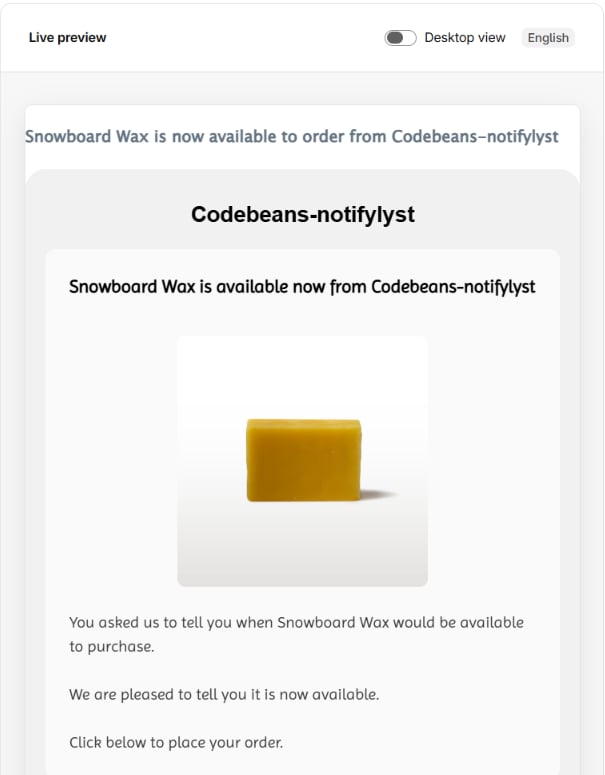
7
They click and buy
The button takes the shopper to the product page with their variant selected. If they buy:
- the order counts as Direct when it comes through the alert link, or Assist when the same shopper (matched by email, phone or customer account) buys after getting an alert;
- any follow-up messages still waiting are cancelled, so they aren’t reminded about something they own.
What happens behind the scenes
Shopify tells Notifylyst whenever inventory changes, so there is nothing to schedule. Before each message goes out, Notifylyst checks again that the app is still installed, the channel is still on, that step is still on your plan, and the variant can still be bought. If any of these fails, the message is skipped.Where it can go wrong
A shopper manages their alerts
Unsubscribe, the Manage page, and turning alerts back on.
Message templates
Change the wording, the steps and the delays.