

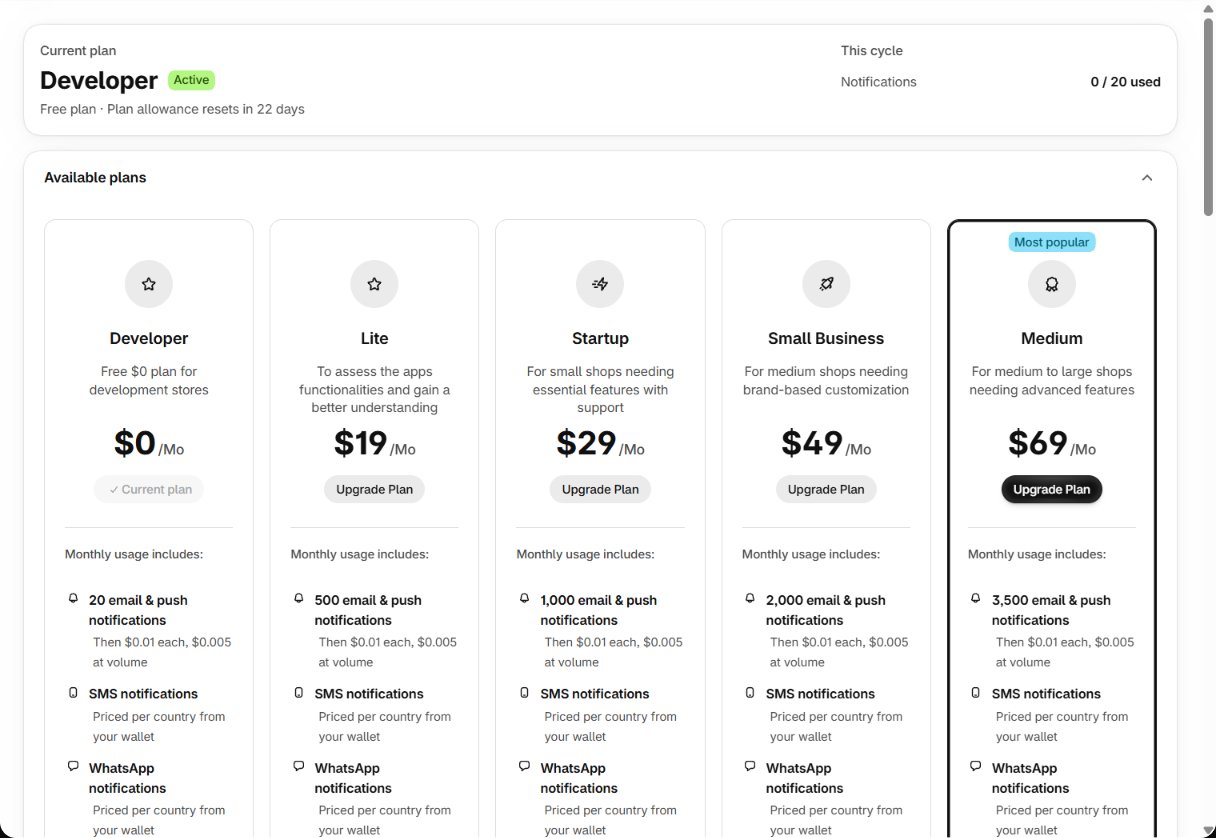
Choosing by what you actually use
Compare against your own numbers, not the feature lists:- Usage history — notifications used against the allowance for the last two or three cycles.
- Are alerts waiting for credit before the cycle resets, or are you topping up every month? That is an upgrade signal.
- Is a large part of the allowance unused every cycle? That is a downgrade signal.
- Do you need more follow-up steps or webhook endpoints? See Plan features.
Switching
- Open Plans and find the plan you want.
- Press its button — Upgrade Plan, Downgrade Plan, Switch Plan, or Start N-day free trial if the plan has a trial you haven’t used.
- Shopify’s plan page opens. Review the price and approve it there.
- You come back to Notifylyst with the new plan active.
Nothing to settle. Upgrades and downgrades are unrestricted: nothing is quoted, withheld or
owed when you switch. Changing plan starts a fresh cycle with the new plan’s full allowance.
After the change
- The new plan’s allowance is granted straight away, for a new cycle.
- Your wallet is unaffected. Credit you added stays, with its own expiry date.
- Data is never deleted by a plan change — sign-ups, history and settings stay.
- If you drop to a plan with fewer follow-up steps or webhook endpoints, the extra ones stop being used.
Messages you might see
No plan yet
Without an active plan, the app shows Choose a plan to get started instead of its pages, with Choose a plan on Shopify. If you already approved one, press Already chose a plan? Reload.Uninstalling
Uninstalling the app ends the subscription through Shopify. What happens to your data: Uninstall and your data.The AI connector can compare plans against your usage, but it can’t change your
plan — that only ever happens here, approved in Shopify.
Plan features
What each plan includes.
Integrations
Next: connect Notifylyst to other tools.